Showing posts with label canvas. Show all posts

Monday, November 29, 2021

Friday, July 17, 2020

8 Ideas Designed to Engage Students in Active Online Learning

Catlin Tucker recently posted "8 Ideas Designed to Engage Students in Active Online Learning". If you have any questions on how to implement any of these, or other ideas, in Canvas, please let me know! 

Monday, January 27, 2020

Canvas: Messaging Students from the Gradebook

From the Canvas Gradebook, you can "message students who" and select from a list of options.


Students will receive the messages based on their own Canvas Notification settings. 

Monday, January 6, 2020

Canvas Level 2 & Level 3 Reminder

Welcome to 2020! This is a great time to reflect on how your Canvas experience went last semester and make a plan for the rest of the school year. 

Canvas Level 2 includes announcements, different ways of adding files, ways to create assignments for students to submit online work, creating quizzes, importing content from other classes or from ExamView, and exploring Commons to see what others have shared.

Canvas Level 3 includes Discussions, Analytics, Outcomes (tracking student performance on TEKS), Mastery Paths (personalized learning), and Groups & Collaborations. 

Learning can be completed in any order within the level. Level 2 must be completed before accessing Level 3.

As a reminder, CHS has a Campus Action Plan goal that at least 25% of teachers will complete (and implement) Level 2 and at least 10% of teachers will complete (and implement) Level 3. Please help us achieve and exceed this goal! 

For your personal T-TESS goal, you must implement the skills within your Canvas course. 

Please see Penney Matos for help with anything Canvas related! 

Monday, December 16, 2019

Print Canvas Quizzes


Recently (Nov. 4) I posted about a script you can use to print Canvas quizzes. Another DLC just came across a Chrome extension (Canvas Quiz Printer) that does the same thing and is much simpler to use! Yay! Check it out!

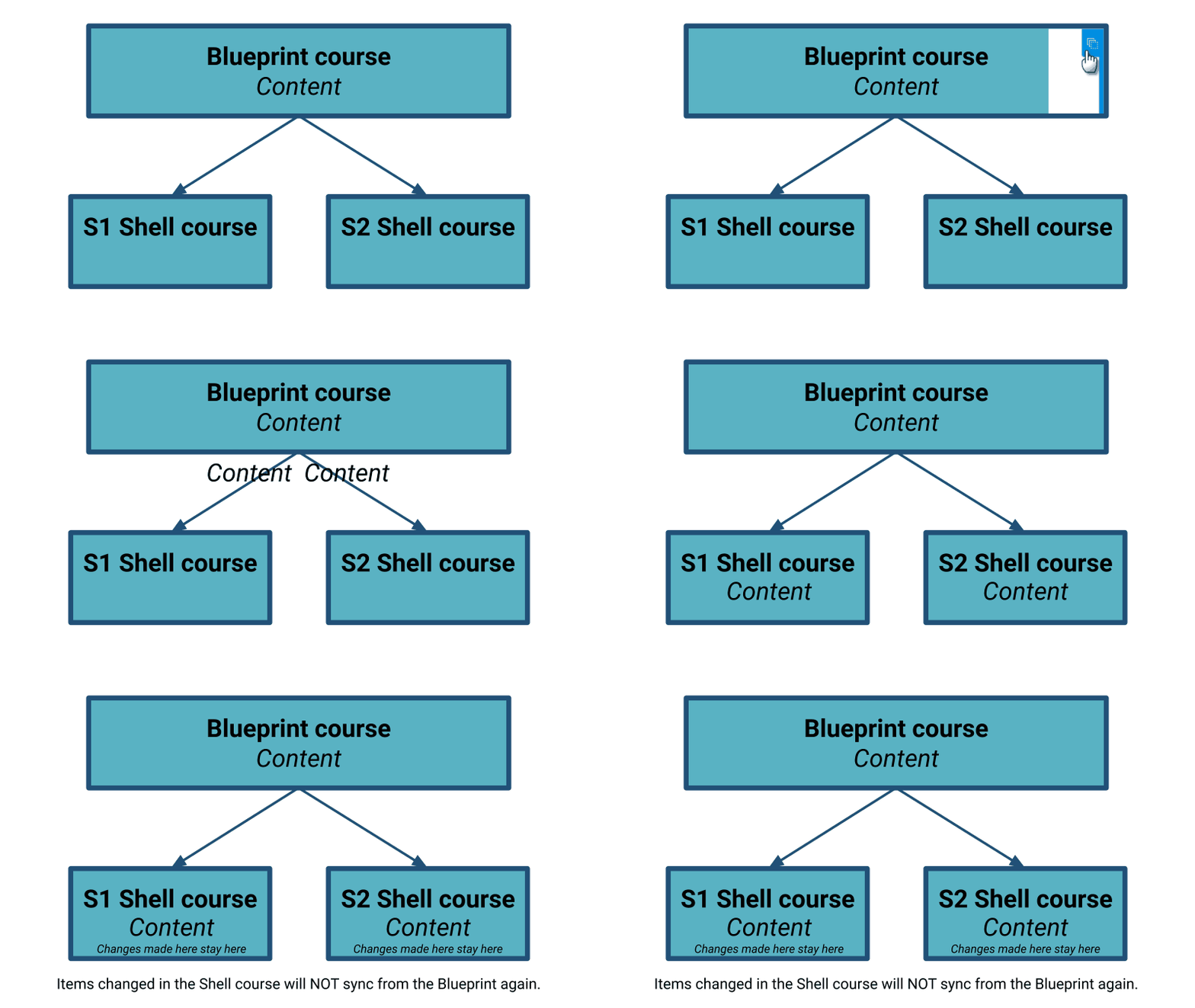
Understanding Canvas Blueprint Syncing in Frisco ISD

Changes made in S1 are not connected to S2. 

Lock content in the Blueprint to keep yourself from accidentally editing in the Shell course. Locking from the Blueprint makes you have to go back to the Blueprint to edit content! Content items that are edited in the Shell course will not sync any additional changes made in the Blueprint. → 

Updating Canvas Navigation

You may have noticed a few more items show up on course navigation in Canvas. Move the items you’re not using out of student navigation.

LTIs (Learning Tool Integration)
SAVE when done!

  • Cengage- For courses using an online Cengage textbook. You’ll need to contact your C&I coordinator for info on how to activate it if it’s available for your content.
  • StudyMate- “The smarter way to make flashcards and learning games.” Accompanies our Frisco ISD subscription to Respondus Lockdown Browser this year. Available for ALL teachers! Read more.
  • MasteryConnect- For our MasteryConnect piloting teachers. Paid account required.
  • New Analytics- Enable in the shell course to view analytics for your course!
  • If you change the Navigation Settings in the Blueprint, the next time you sync, check the box to “Include Course Settings” to push those changes to the S1 & S2 Shell courses for students. 

Monday, December 2, 2019

High School End-of-Semester Checklists

In preparation for the switch from Semester 1 to Semester 2, please reference these checklists:


See Penney Matos if you have questions or need assistance!

Canvas Discussions

Canvas Discussions can be a powerful tool in your classroom! 

Check out this presentation from Instructurecarn 2018 that covers the importance of setting up good architecture to discussions and suggested hashtags to aide in organizing discussions. 

Then check out this Adobe Spark Page with more information, examples, and tips.  

Here's another example discussion:

Monday, November 4, 2019

Printing Canvas Quizzes


I learned the coolest thing recently! This is how to print Canvas Quizzes. It does not work with New Quizzes at this time (formerly Quizzes.Next). Read more.

Canvas Cheat Sheet


As you feel more comfortable with Canvas, you may be ready to try out some additional features. This is a quick reference "cheat sheet" to help you along the way. Read more. 

Pick up a printed version from the CHS mailroom! 

Monday, October 21, 2019

Undeleting Canvas Items


If you accidentally delete something from a Canvas course (Blueprint, Shell, Sandbox, etc), add "/undelete" to the end of the course URL and you'll see a list of items you deleted! Click "restore" to bring it back! So amazing! You're welcome!

Analytics in Canvas

Did you know that Canvas has a lot of very helpful analytics built inside it? You should take some time to poke around and see what you can find! You can see how active your students are in your course, check on their progress, and if assessments are given and graded through Canvas, the analytics can be very helpful in documenting what's going on! (Think SLO goal.)

Video: Course and Student Analytics Overview (4:08)

Module Tracking

If you set up completion requirements on Modules, click View Progress on top of the Modules list to see what requirements are still required for each student. Read more.

General Analytics

On the Home page in your Shell course, click View Course Analytics on the right side to view general analytics for your course. Read more.


Student Activity

Click on a Student's name (from People, Grades, Analytics, etc) to pop-out a tray on the right with a summary of that student's activity in the course. This view includes: last login, number of missing and late assignments, scores for the most recently graded items, and a link to the student's analytics.


Student Access Report

Click on the student's name from that pop-out tray then select Access Report on the right. You can see when the students was active in your course. 


Analytics Beta

If you activate Analytics Beta in your course, you can see even more helpful data!

Monday, September 30, 2019

Good laugh

Want a good laugh? Take a look at the anonymous usernames in the Canvas for CHS Teachers leaderboard. Ha!
1- Canvas for CHS Teachers
2- Badges (on left)
3- Leaderboard (top right)
4- See usernames. It'll start on the page where you're located.


Canvas Housekeeping

As we near the end if the first marking period, please take a few minutes to tidy up your Canvas course. The more time spent cleaning it up now, the less time needed to clean it up later.

Blueprint
Make sure there are NO DATES in anything in your Blueprint. If dates were assigned in your Shell Course, removing dates in the Blueprint and syncing won't change the dates in the Shell Course. 

Blueprint & Shell Course 
  • Check your Blueprint first. Sync. Then check the Shell course for any discrepancies. 
  • Unpublish any items that students no longer need access to. If a Module is unpublished but the contents within the module remain published and students have access to the item from another way (like linked within a page or on the calendar), they will still be able to access the item.

  • You cannot unpublish assignments in the Shell course that contain any student submissions.
  • Check your list of Pages, Assignments, Quizzes, & Discussions (navigation on left) to see if there are any items that should be deleted. They may have previously been removed from the Modules list but they still exist here until they’re completely deleted out of Canvas. Deleting something from the Pages, Assignments, Quizzes, or Discussions lists will also remove it from the Modules list. The Modules list is pointing to these items. Don’t delete them if you plan on using them again next semester or next year.
  • In the Blueprint, take a few minutes to organize your Files (navigation on left).
    • Move all graphics into one folder labeled "graphics" or something similar. If you know which unit they go with, you can move them into a folder for that unit instead. Don’t delete them unless you know for a fact that they’re not being used in a Page, Assignment, Quiz, or Discussion. If you delete it from the files list, it will also disappear from the item in which it’s being used.
    • If you have a lot of files, create folders by unit or theme or however your Modules list is organized. Drag and drop the files into the folder to organize them. 

If you have any questions about organizing or using your Blueprint or Shell course, please let Penney Matos know!

Monday, September 23, 2019

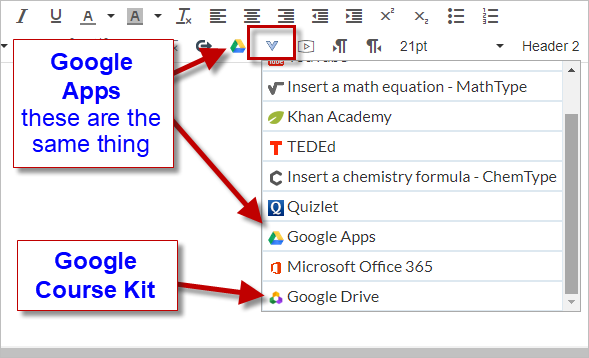
Canvas's Google Cloud Assignment vs Google's Course Kit Assignment


Google files can be shared to view and also be assigned for students to edit their own copy then submit back through Canvas.

Viewing Files

If you only want students to view the file, like a copy of notes or a review answer key, you have a couple of options:
  • Add to Modules List as "External Tool"
    • Google Drive file
      • Accesses only My Drive
      • You have to manually change the file's share settings to "Anyone can View" or "Frisco ISD can View"
    • Google Drive Course Kit file
      • Accesses both My Drive and Share Drives
      • Looks like you're adding an Assignment but you're really not
      • It changes the share settings for you
  • Add within a Page, Assignment, Discussion, Announcement, etc.
    • Google Apps file
      • Accesses only My Drive
      • Manually change the file's share settings so "Anyone can View" or "Frisco ISD can View"
      • You select to Embed or Link (hyperlink) the file
    • Google Drive Course Kit file
      • Accesses both My Drive and Share Drives
      • Looks like you're adding an Assignment but you're really not
      • It changes the share settings for you
      • The file Embeds within the page

Assignments

If you want to use a Google file for students to edit and return as an assignment, there are 2 options:
  1. Google Cloud Assignments
    • Only accesses files in My Drive (not Shared Drives)
    • When students open the file, it makes a copy in their own Google Drive that they then edit.
    • When students submit, Canvas takes a PDF snapshot of the file for the submission. This means:
      • no Version history
      • no access to Draftback
      • no Google's Originality Checker
      • students still have the original doc and can edit
    • If students make changes to the doc after it's submitted, you won't see the changes unless they resubmit an new PDF snapshot.
    • Google Cloud Assignments can be added in a Blueprint and synced out to the Shell courses
    • Can use Canvas Rubrics
    • Grade through Canvas with the SpeedGrader
  2. Google Course Kit Assignments
    • Only accesses files in My Drive (not Shared Drives)
    • More similar to Google Classroom
    • When students open the file, it makes a copy in their own Google Drive that they then edit.
    • When students submit, they are turning in the live document which means:
      • you can view the Version history
      • you can run Draftback on the file
      • it includes Google's Originality Checker
      • students lose editing rights upon submission
    • Students can add multiple files to a single submission.
    • If you return the file to students, they can then make changes and you can see the changes as they work.
    • If students submit the same file again, it makes a copy of the original file for this submission. They have both copies in their Drive.
    • Must be added to the assignment from the Shell course, not in Blueprint.
    • Does NOT access Canvas rubrics; uses Google's rubrics
    • Grade through Course Kit using Google's grading features 

For more, see this comparison chart.

Canvas Navigation Change

This weekend, our Canvas environment received the most recent update which included a change in the way navigation appears for teachers in a course. No, you're not crazy! It did change.


Canvas's New Training Portal

Canvas's new training portal is now live in our Canvas environment! This includes access to on-demand trainings as well as scheduled live webinars. This is super helpful to users wanting to learn more about Canvas's features and functionality. To access it, just click on Help and then select Training Services Portal.

Monday, September 16, 2019

Canvas Blueprints should NOT have dates

As you build in your Canvas Blueprint and sync it out to the Shell courses, please make sure your Blueprint does NOT include dates. If these dates remain, when we switch from S1 to S2, all of the items with dates (calendar events, assignments, to-do items, etc.) will repopulate on the Syllabus page for all of your students! Ack! 

So, if something in the Blueprint has a date associated with it, make sure all teachers assign the correct due dates/times for each of their classes then go back to the Blueprint and remove the dates or calendar event. Since it was edited for the Shell courses, it no longer syncs that item and will keep the specific dates entered for each section. 

If this doesn't make sense to you or if you have any question, please see Penney Matos!

Tuesday, September 3, 2019

Canvas "No Submission" Assignment VS Calendar Event

If students are not turning in their work through Canvas, it is recommended to use a Calendar Event instead of an Assignment with "No Submission". See the table below for details.
Read more.